
# Form Validation
# Learning Objectives
After completing this lesson, you will be able to:
- Use built-in HTML5 form validation
- Use JavaScript to do custom validation on HTML forms
- Require a field
- Validate a field using a regular expression
- Display a custom error message
# Lesson
# Why is form validation important?
Form validation is the process of checking if the data entered by a user is in the correct format. The form will display error messages if any fields do not pass the validation tests.
While it is important to validate any information on both the server-side and the client-side, this lesson will cover some of the ways validation is handled on the client-side.
# Validating forms with HTML
# Built-in validation
HTML has some built-in tools to validate the data entered into the form controls to ensure that the data is formatted correctly. In the following email example we will use an attribute type on an input element called email.
<fieldset>
  <label> Email Address:
    <input type="email">
  </label>
</fieldset>2
3
4
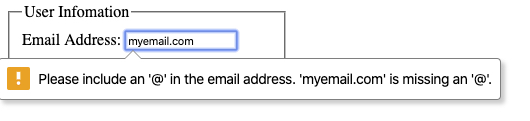
This type creates a single-line text field that allows a user to enter test but must contain a '@' symbol or the user will be alerted with an error stating the symbol is missing.
Let's look at the built-in validation for another input type.
<fieldset>
  <label> Age:
    <input type="number">
  </label>
</fieldset>2
3
4
This type also creates single-line field that only allows for numbers in the field. It prevents letters from being entered into the field and adds a step counter to the field.
There are other attributes that we can add to form controls and other form controls that can help restrict the data or format of the data entered.
<fieldset>
  <label> Password:
    <input type="password" minlength="3" maxlength="12">
  </label>
</fieldset>2
3
4
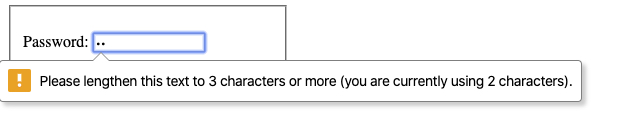
We are using the type of password to indicated the field should be hidden when a user is typing characters into the field to help protect the users password. We also added the attributes minlength and maxlength. These attributes will display an error if password entered is too short or too long. These attributes can be added to any field that contains text that you want to restrict the amount of characters entered.
<fieldset>
  <label> Age:
    <input type="number" min="5" max="100">
 </label>
</fieldset>2
3
4
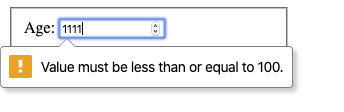
To prevent someone from entering an age that is outside of a human lifetime we can add the min and max attributes onto an input that is of the number type. This restricts the numbers enter to the range that you assign. In this example we only allow an Age that is between 5 and 100.
You can checkout several other input types and attributes by visiting this link. MDN - Input
# Required attribute
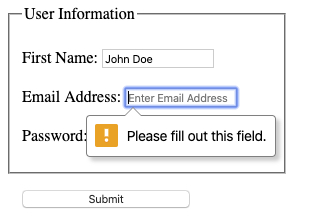
One other attribute that is used most commonly on form controls is the required attribute. This can be added to all of the form controls including <select>. <textarea>, <input>. This attribute tells the browser that the field cannot be left blank. The user must enter information into this field for the form to be submitted otherwise the user will see an error.
<form>
  <fieldset>
    <legend>User Information</legend>
    <p>
      <label for="name">Name: </label>
      <input id="name" name="name" type="text" required />
    </p>
    <p>
      <label for="email">Email Address: </label>
      <input id="email" name="email" type="email" required />
    </p>
    <p>
      <label for="password">Password: </label>
      <input id="password" name="password" type="password" required />
    </p>
  </fieldset>
  <button id="submit-button" type="submit">Submit</button>
</form>2
3
4
5
6
7
8
9
10
11
12
13
14
15
16
17
In this example we've created a simple form. All the input elements have the required attribute. If we try to submit this form without entering information into one of the fields. The browser will focus the cursor on the field and display an error.
# What are Regular Expressions?
A regular expression, or regex is a special text string for describing a search pattern. You can also use regex in Javscript's string methods to match a pattern and modify a string.
# RegEx in HTML
To understand regular expressions, let's look at how to use one with the pattern attribute. The pattern attribute checks if the data entered by the user matches its regex value.
<fieldset>
  <legend>Are You a Robot</legend>
  <p>
    <label for="robot-check">Please Type: <strong>I am a human</strong></label>
    <input id="robot-check" type="text" pattern="I am a human">
  </p>
</fieldset>2
3
4
5
6
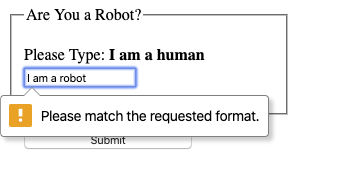
In this example, we have a user type into an input text field "I am a human". If a user doesn't type "I am a human" exactly (including capitalization), an error will be displayed and the form will not be submitted.
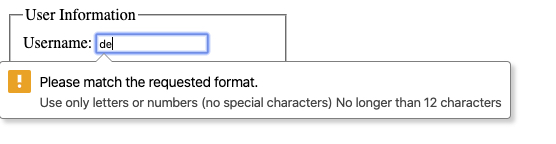
Here is an example that limits the length and only allows letters and numbers.
<fieldset>
  <legend>User Information</legend>
  <label for="username">Username: </label>
  <input
    id="username"
    name="username"
    type="text"
    title="letters or numbers (no special characters) between 4 and 12 characters"
    pattern="[A-Za-z0-9]{4,12}"
  />
</fieldset>
2
3
4
5
6
7
8
9
10
11
[A-Za-z0-9] is stating that the characters in the text field can be any letter, both lowercase [a-z] or uppercase [A-Z], or a number [0-9]. When we use use - between two numbers or two letters we are creating a range that the characters can be. The final part of our pattern {4,12} is called a repeater. This is stating that our letters or number can be repeated between 4 or 12 times. This is essentially creating a minimum length (4) and maximum length (12). If we didn't want to restrict the user to a certain length we can replace {4,12} with +.
TIP
The title attribute specifies extra information about an element. The information is most often shown as a tooltip text when the mouse moves over the element. This is a useful practice when using validation that isn't clearly stated as part of a label.
There are many more possibilities that we don't cover here. For a complete list and many examples, check out MDN - Regular Expressions
# Regex in JavaScript
A regular expression in JavaScript is a type of object. It can be either constructed with the regex constructor or written as a literal value by enclosing a pattern in forward slash / characters.
let regularExpressionConstructor = new RegExp("abc");
let regularExpressionLiteral = /abc/;TIP
If you expect your regular expression to remain constant, it is best to use a regex literal. If your regular expression is dynamic, it is better to use the regex constructor method.
const myRegex = /Hello World/
const test = myRegex.test("Hello World")In this example we use the test() method on a string. test() is a regex method that accepts a string as a argument. It will then test our pattern against the string and return a boolean value. In This case, If we console.log(test), it will print true to the console.
We can also use string methods to update our variable based on our pattern.
const myRegex = /\s/
const myString = "Hello World"

const newString = myString.replace(myRegex, "-")2
3
\s is a special character in regex. We use the \ to signal that is is not a normal character. In regex this character signals that we are looking at any whitespace in our string, this also checks for newline(\n), tab(\r), etc.
We pass our pattern into our string method .replace() as its first argument. When there is a match, it will replace the first instance of whitespace with a "-". So now newString is assigned the value of Hello-World. If we wanted to check for all the instances of whitespace in a string, we would add the g modifier to the end of our pattern (/\s/g).
# Validating Forms with JavaScript
HTML form controls can restrict the format of allowable values, using attributes like required and pattern to set basic constraints.
However, you may want to impose more complex constraints, or to provide clearer reporting of validation failures than the defaults.
# JavaScript Validation
We can add in some of our validation via if statements in our JavaScript with the help of regex. This is useful for legacy browsers that don't support HTML built-in validation.
<form>
  <fieldset>
    <legend>User Information</legend>
    <label for="name">Name: </label>
    <input id="name" name="name" type="text" />
  </fieldset>
  <button type="submit">Submit</button>
</form>
<script>
  const form = document.querySelector("form");

  function checkName(name) {
    myRegex = /[A-Za-z]+/;
    return myRegex.test(name);
  }

  form.addEventListener("submit", event => {
    const nameInput = document.querySelector("#name");
    if (!checkName(nameInput.value)) {
      event.preventDefault();
      alert("Please use only lowercase or uppercase letters");
      return;
    }
  });
</script>
2
3
4
5
6
7
8
9
10
11
12
13
14
15
16
17
18
19
20
21
22
23
24
25
We've added an event listener (see Handling Browser Events) addEventListener() on the form. When the user submits the form it will call our checkName() function takes data entered into the name field and tests it against the regex pattern. If this this function returns false if runs the alert() method telling the user to use the correct format.

We can also check to see if a field is empty just as if there was a required attribute on a field.
<script>
  const form = document.querySelector("form");

  function checkName(name) {
    if (name == "") {
      return false;
    } else {
      return true;
    }
  }

  form.addEventListener("submit", event => {
    const nameInput = document.querySelector("#name");
    if (!checkName(nameInput.value)) {
      event.preventDefault();
      alert("Name is required");
      return;
    }
  });
</script>
2
3
4
5
6
7
8
9
10
11
12
13
14
15
16
17
18
19
20
# Custom Error Messages
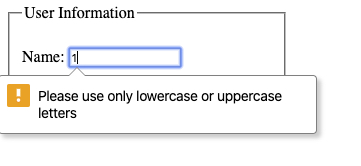
In the previous example, if our error validation function returns false, it displays a pop up alert. For larger forms, closing a lot of pop ups might be a hassle for the user. In this case, we can create our own custom error messages.
This can be done using the Constraint Validation API which is supported by most browsers.
In the scope of this lesson will not cover the entirety of the different properties and methods of the Constraint Validation API but more information can be found on MDN - Contraint Validation API
The Constraint Validation API makes some properties available on on form control elements. For the example we will take one of the examples above and refactor to change the alert into our own custom error message.
<script>
  const form = document.querySelector("form");
  const nameInput = document.querySelector("#name");

  function checkName() {
    const myRegex = /[A-Za-z]+/;
    if (!myRegex.test(nameInput.value)) {
      nameInput.setCustomValidity(
        "Please use only lowercase or uppercase letters"
      );
    } else {
      nameInput.setCustomValidity("");
    }
  }
  nameInput.addEventListener("change", checkName, false);
</script>
2
3
4
5
6
7
8
9
10
11
12
13
14
15
16
We have added addEventListener() on the name input set to detect changes to the value in the name field. When changes are made it calls our checkName() function. This function will display our custom error message if the value doesn't match our regex.
setCustomValidity() changes the build-in HTML validation message and will display that error message.
# Summary
Client-side validation is a important step insuring the data passed from a form is entered correctly and formatted in a way that can be stored properly in a database and/or used to update the DOM.
HTML form controls have attributes that add in basic validation and error messages to help streamline the process, such as input type, pattern, and required.
Regular expressions are a useful tool for ensuring that valid data is entered into a form. In addition, they can change the format of that data before it is sent to a server. Regular expressions are not language specific and can be used in many different programming languages such as HTML and JavaScript.
JavaScript's Constraint Validation API allows you to create your own custom validation error messages and customize how you form validates the information.
# Training Exercises
To solidify your knowledge, here are a set of exercises that will require you to use the techniques you've just learned in the lesson above.
They are organized into small, medium, and large sized problems. The small exercises will be very similar to the examples in the lesson. If you get stuck, refer to the relevant section above. The medium exercises will require you to combine concepts. The lesson may not have a single, specific example for you to reference. The large exercises are more open-ended and may require you to search the web for additional material.
# Small
# Form with Required Field
Create a simple HTML form with a single field called "Name" and make it required. Test in multiple browsers what happens when you click "Submit" without filling out the required field. Every browser is a little different.
Solution
<!DOCTYPE html>
<html lang="en">
  <head>
    <meta charset="UTF-8" />
    <meta name="viewport" content="width=device-width, initial-scale=1.0" />
    <title>Form with Required Field Solution</title>
    <style>
      body {
        margin: 0 auto;
        max-width: 500px;
      }
    </style>
  </head>
  <body>
    <h1>Form with Required Field</h1>
    <form method="POST">
      <label for="name-input">Name</label>
      <br />
      <input type="text" id="name-input" required />
      <br />
      <button>Submit</button>
    </form>
  </body>
</html>
2
3
4
5
6
7
8
9
10
11
12
13
14
15
16
17
18
19
20
21
22
23
24
# Form that Checks Pattern
Create a simple HTML form with a single field called "Age". Restrict the user to only numbers that are from 0-100
# Create a Custom Error Message
Create a simple HTML form with a single field called "Username". This field should a custom error if the name is longer than 15 characters.
# Medium
# Sign Up form with Validation
Create a sign up form with the following fields and validations.
| field | validations |
|---|---|
| name | required, minimum length: 5 |
| password | required, minimum length: 6, maximum length: 15 |
| required, email format | |
| about me | textarea, maximum length: 250 |
| robot check | required, should match a pattern of text |
# Large
# Sign Up Form
Use the form you created in the Medium exercise "Sign Up form with Validation" and create custom validation messages for each field. You can also use CSS to alert a user to a field that has a mistake. CSS :invalid.
# Interview Questions
# Fundamentals
- Name as many input types as you know
- What is the use of the required attribute in HTML5?
- What are the limitations of the built in HTML form validation?
- What are Regular expressions?
# Bugfix
Fix the following code:
<form>
  <fieldset>
    <legend>User Information</legend>
    <p>
      <label for="name">Name: </label>
      <input id="name" name="name" type="text" pattern="/[0-9]/" required />
    </p>
  </fieldset>
  <button id="submit-button" type="submit">Submit</button>
</form>
2
3
4
5
6
7
8
9
10
Solution
The solution for this is two fold. First the pattern attribute doesn't need to have /s. This will it to look at / as part of the pattern.
Second, the pattern is incorrect for the name field. [0-9] is matching any numbers between 0 and 9. This is a field looking for a name it would be better to use [A-Za-z]+ to allow for the field to only contain lowercase and uppercase letters.
<form>
  <fieldset>
      <legend>User Information</legend>
      <p>
        <label for="name">Name: </label>
        <input id="name" name="name" type="text" pattern="/[0-9]+/" required />
      </p>
  </fieldset>
   <button id="submit-button" type="submit">Submit</button>
</form>2
3
4
5
6
7
8
9
# Conceptual
- What is the difference between the regex methods
test()andexec()?
# Architect
- How would you validate a postal code field if you served customers across multiple countries?